API limits
What message limits are for
A message limit watches how many messages a single application may send per day. The portal calls it a mechanism for setting and monitoring the message limits of an API, and states the reason itself: to keep API usage under control so that no unwanted financial costs arise and nobody misuses the channel.
The limit can be broken down by country, and on top of that you decide what happens to messages over the limit — whether they wait, go out the next day, or get discarded.
This page covers API Message Limits, that is the number of messages sent. How
many requests an application may send to the API is covered by the separate
API request limits page.
Where to find the limits
- Click
Modules & APIsin the portal menu - Under
My APIs and Modulesclick the card of your application - Stay on the
Settingstab and scroll to theAPI limitspart
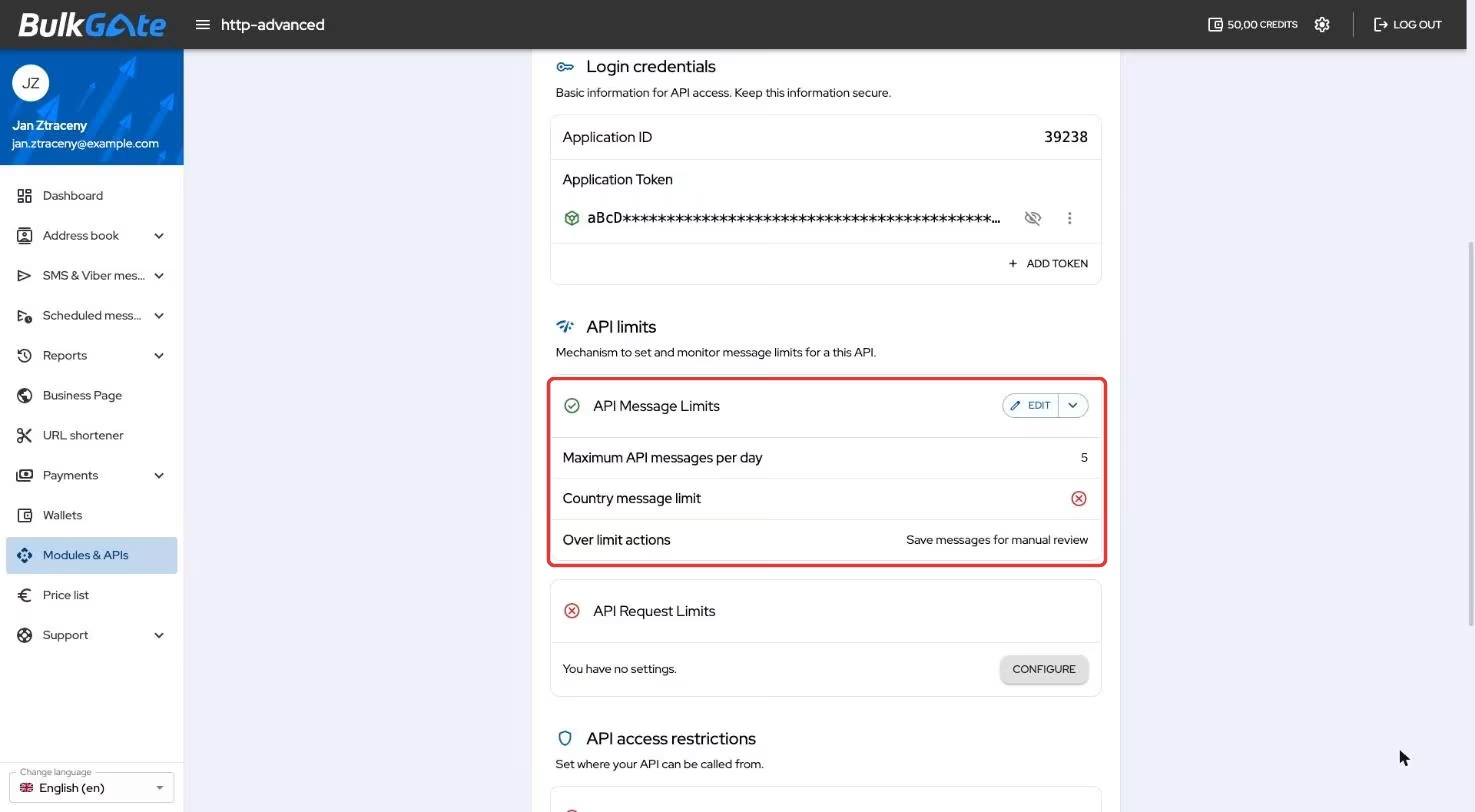
The API Message Limits card shows the current setup in three rows — Maximum API messages per day, Country message limit and Over limit actions. As long
as nothing is set, it shows You have no settings. and a Configure button
instead.
How to set the limits
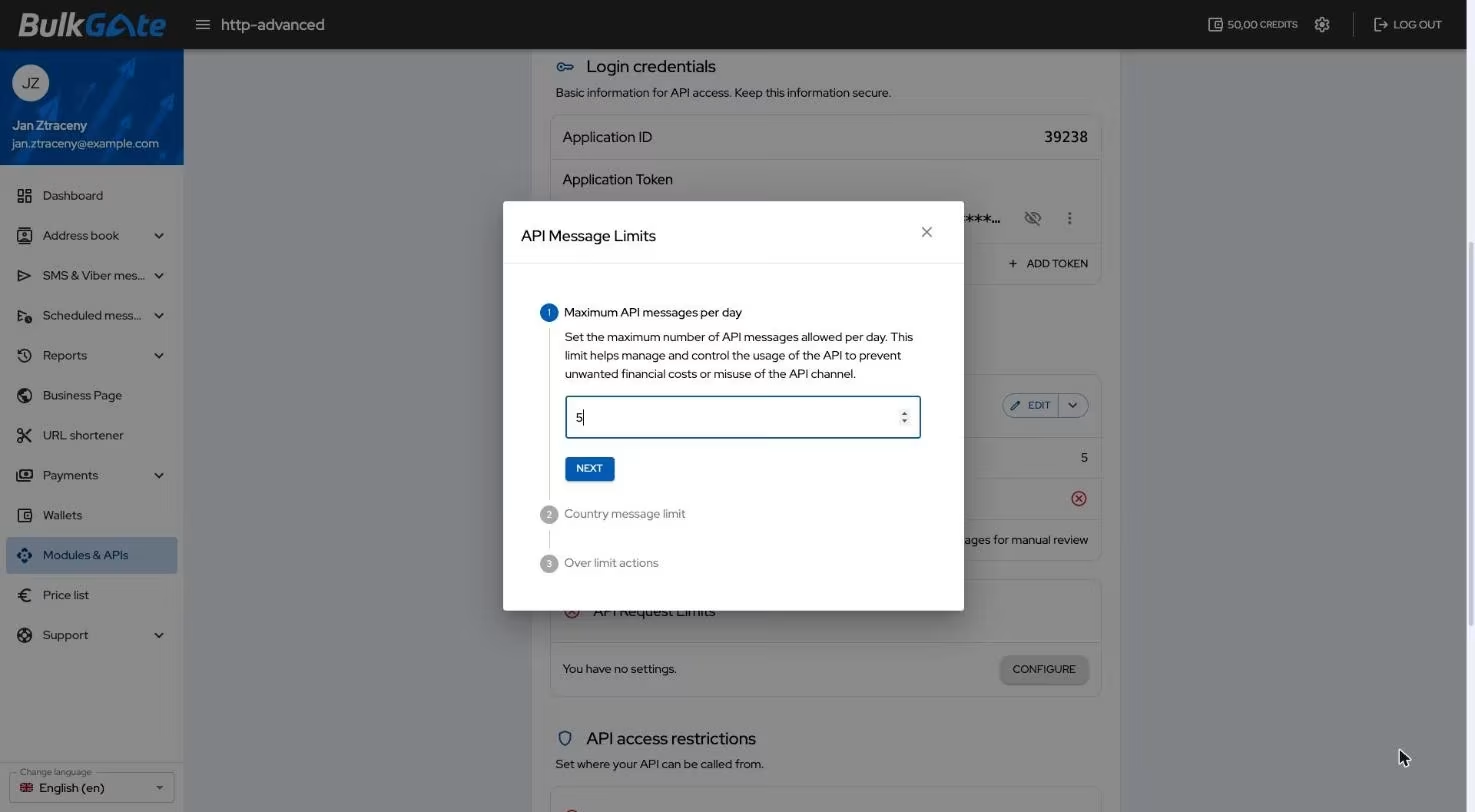
The Configure button (or Edit, if you already have limits) opens the API Message Limits window with three steps. You move between them with the Next
and Back buttons; nothing is stored until the final Save.
Step 1 — Maximum API messages per day
Enter how many messages the application may send in a single day. Without a
positive number the Next button stays disabled.
Step 2 — Country message limit
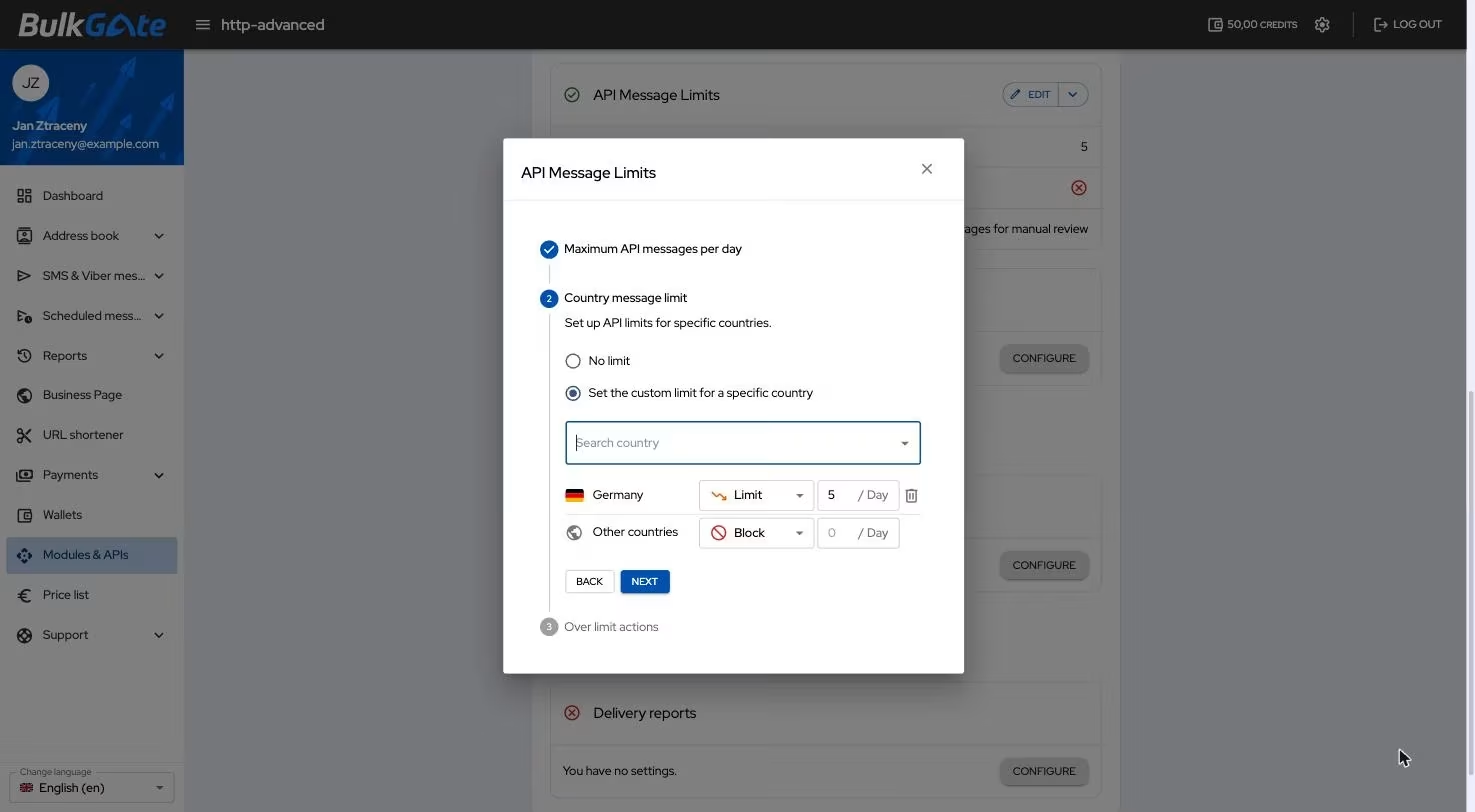
Either leave No limit, or choose Set the custom limit for a specific country
and pick the countries you want to handle separately in the Search country
field. Each one is added to a list where you give it one of three modes:
| Mode | What it means |
|---|---|
API maximum |
The country draws from the shared daily limit and has no cap of its own |
Limit |
The country has its own daily limit, which you type in the field next to it |
Block |
Nothing is sent to that country |
Once the list holds more than one entry, an Other countries row appears, which
sets the mode for all the remaining countries at once. The bin icon removes a
country from the list.
Step 3 — Over limit actions
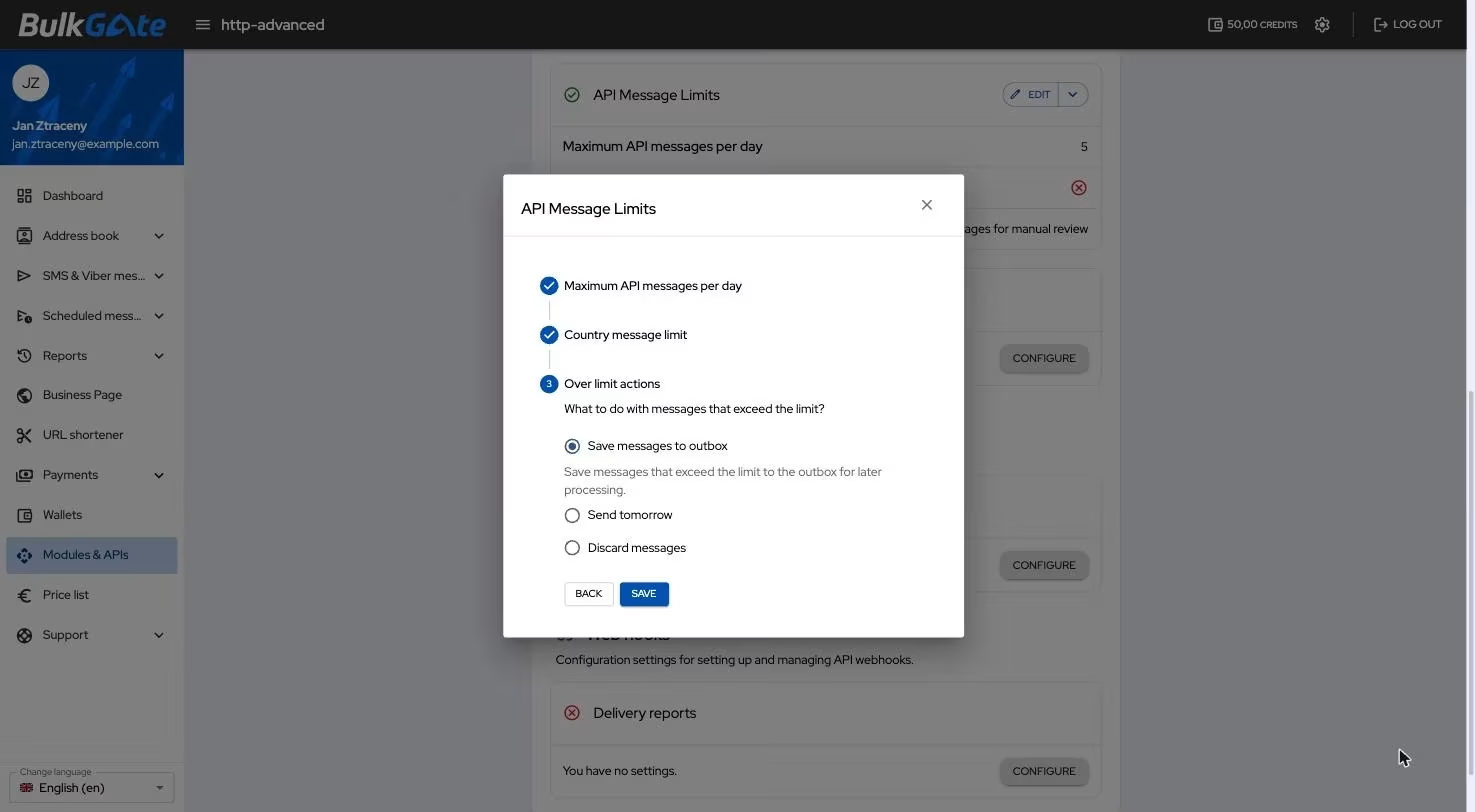
The portal asks What to do with messages that exceed the limit? and offers
three options:
| Option | Behaviour |
|---|---|
Save messages to outbox |
Messages over the limit are saved to the outbox for later processing |
Send tomorrow |
Messages over the limit go out the next day at the time you set with the option |
Discard messages |
Messages over the limit are discarded |
A blocked country follows a rule of its own — messages to it are discarded no matter which over limit action you have set.
How to watch the limit being used up
Above the Settings and Statistics tabs sits the Today's API Limits Status
panel with the percentage used and a progress bar. When you break the limit down
by country, a row is added for each of them; a blocked country shows denied
instead of the bar.
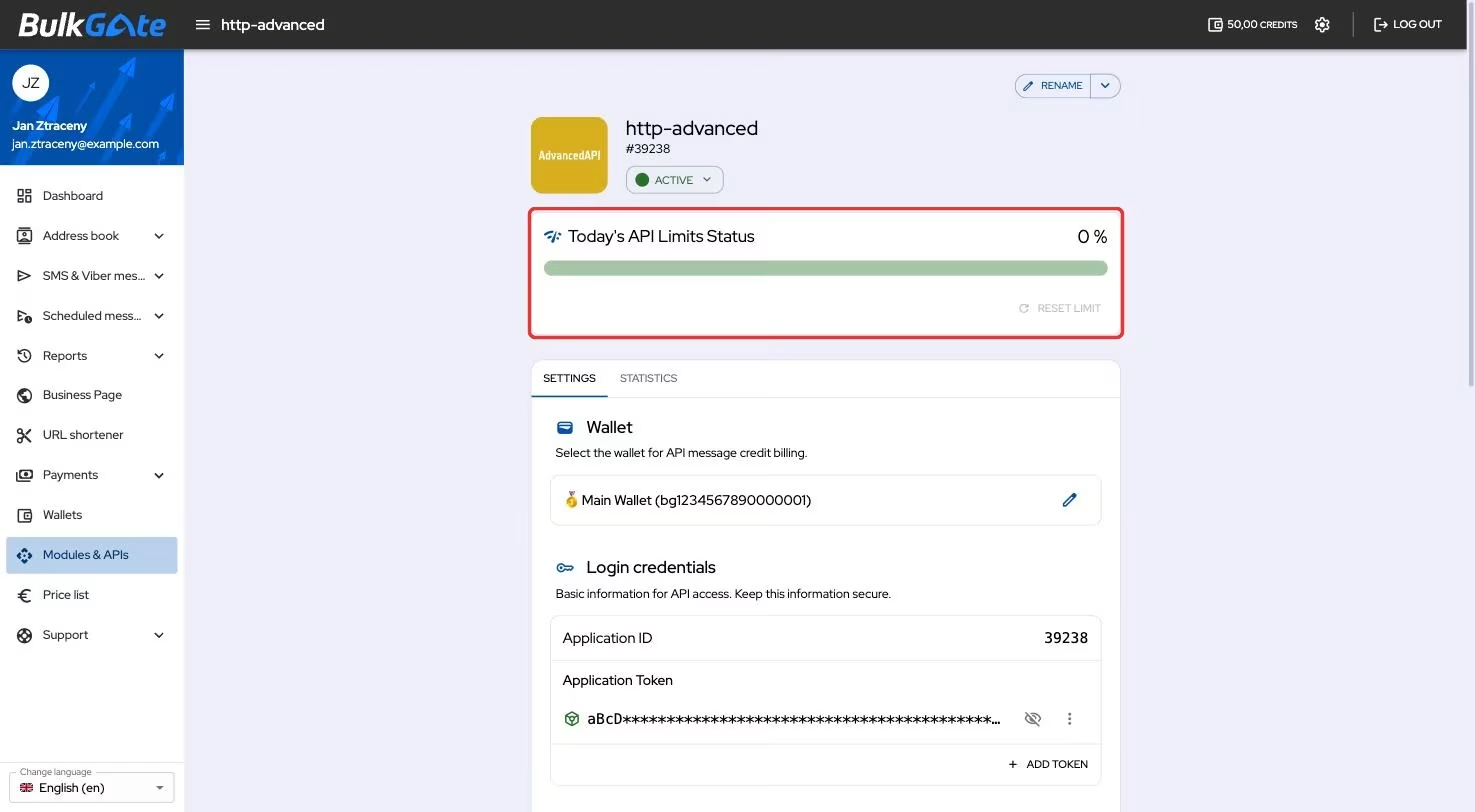
At 80 % the portal warns with Your daily limit will soon be exceeded., and once
the whole limit is used up with You have reached your daily API limit!.
The Reset limit button zeroes the counter of today's messages — the confirmation
window points out that the Counter of messages sent today will be reset to zero.
The icon next to a country row resets just that one country. As long as the
application has sent nothing today, the button stays disabled.
Warnings about unusual traffic
On top of the limits you set yourself, the portal also watches how your application's traffic develops over time. It compares today's messages with what the application was sending in the preceding period, and warns you when the two diverge noticeably.
It distinguishes two cases:
| What happens | How it shows |
|---|---|
| Messages start going to a country your application does not normally send to | The messages are saved to the outbox and the warning arrives by e-mail and SMS |
| A country you do send to regularly gets noticeably more messages than usual | Sending continues and the warning arrives by e-mail |
The first case therefore doubles as a safeguard — the messages wait until you approve them, regardless of which over limit action you have set.
This check only runs while you have no custom per-country limits set in the
Country message limit step. Once you handle the countries yourself, the
portal follows your settings and does not watch trends.
So that the portal does not flood you, it sends only a few warnings about the same phenomenon and then goes quiet. It also needs sending history — for a newly created application with nothing to compare against, trends are not evaluated.
How to remove the limits
The arrow next to the Edit button opens a menu with the Delete option. The
Remove API limits confirmation window points out that once deleted, the API
will no longer restrict sending messages according to limits.
Thank you for your feedback.