Webhooks
What the webhook sends
A webhook is an address on your side that BulkGate reports to about what happened
to your messages. The portal calls it Delivery reports, but it sends two things
to it at once:
| What arrives | How you recognise it |
|---|---|
| Delivery report | A record with the status of a sent message and its smsID |
| Incoming SMS (a reply) | A record with status 10, the sender in from and the message text |
So it is not two separate settings — a single address handles both delivery reports and replies.
The data format depends on whether bulk sending is switched on:
| Mode | How the data arrives | Format described on |
|---|---|---|
| default | One request per message, by GET | Delivery confirmation |
Bulk DLRs - bulk request |
A batch of records, by POST with application/json |
Bulk delivery confirmation |
Where the webhook is set
The place differs by the interface you use. The first two steps are the same in
every case — click Modules & APIs in the portal menu and open the card of your
application under My APIs and Modules.
| Interface | Where in the application detail |
|---|---|
| HTTP API | The Settings tab, the Web hooks part, the Delivery reports card |
Email > SMS |
Only Email delivery reports — reports arrive by e-mail, not to a URL |
How to turn the webhook on
The card shows whether anything is set. As long as nothing is, it shows
You have no settings. and a Configure button.
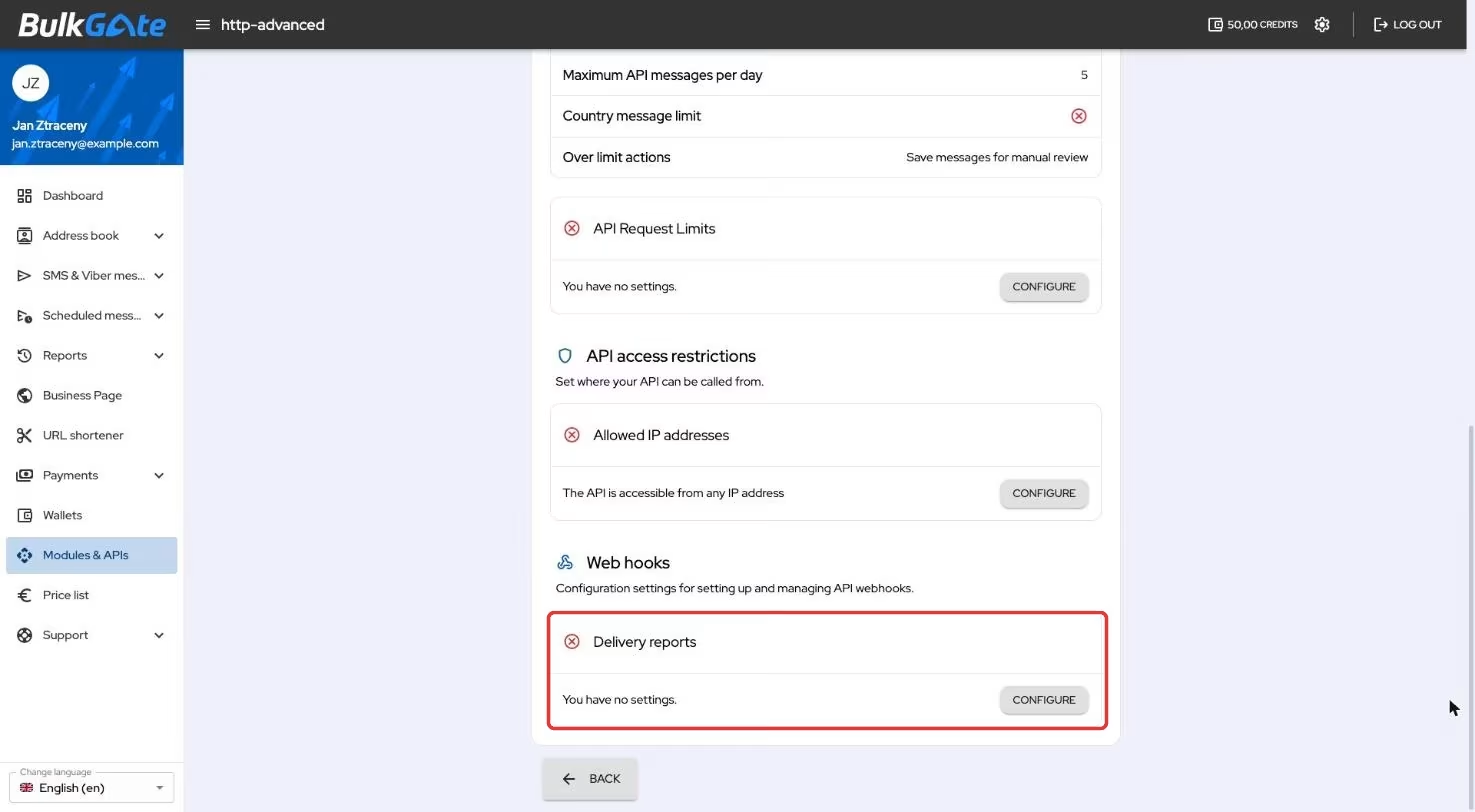
The Configure button (or Edit, if you already have settings) opens the
Delivery reports setting window.
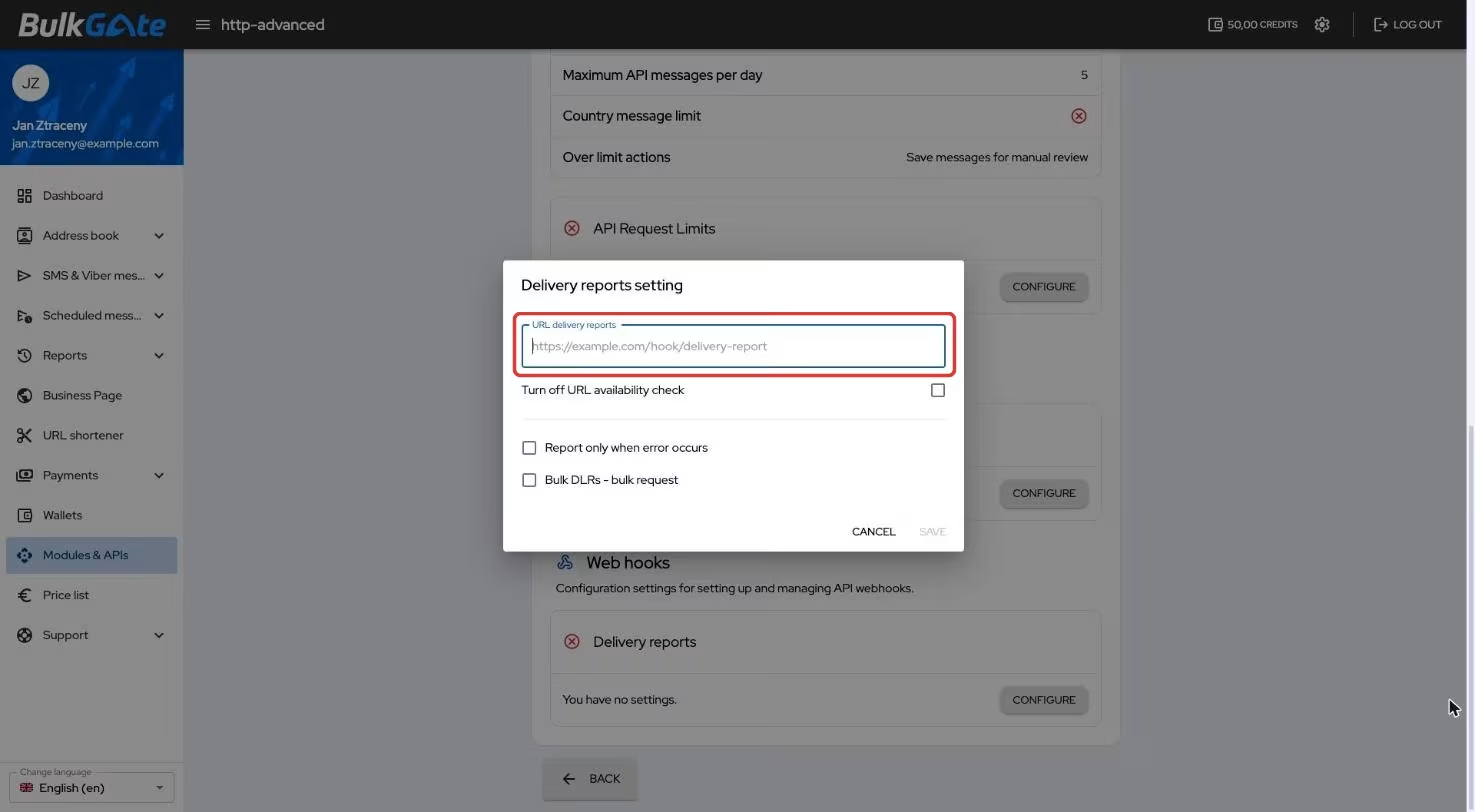
Enter an address starting with http:// or https:// into the URL delivery reports field — the portal accepts no other notation. Three checkboxes go with
it:
| Option | What it does |
|---|---|
Turn off URL availability check |
The portal does not verify that the address responds before saving |
Report only when error occurs |
A report arrives only for a failed message |
Bulk DLRs - bulk request |
Reports arrive in batches instead of one by one |
You store the setup with the Save button.
Bulk sending is useful at high volumes — instead of one request per message, a single request arrives with an array of records. The batch format is described on Bulk delivery confirmation.
Once the webhook is set, the card lists three rows — URL with the address, and
an icon for each of Report only when error occurs and Bulk DLRs - bulk request
showing whether they are on.
How to remove the webhook
The arrow next to the Edit button opens a menu with the Delete option. The
Delete settings confirmation window warns that you will lose your delivery
reports settings and they will stop arriving.
Removing the webhook stops incoming messages as well — replies to your SMS have nowhere to be delivered.
Thank you for your feedback.