Email to SMS credentials
What the Email to SMS credentials are
Email > SMS does not send messages over an HTTP API but by e-mail. Instead of
an Application ID and a token you therefore need two values, which the portal
generates when the application is created:
| Value | What it is for |
|---|---|
Recipient |
The address you send the e-mail to. The recipient number goes before the at sign |
Subject |
Identifies your application and sets how many SMS the message may take up |
The subject doubles as a credential — anyone who knows it can send on your account. Treat it the same way as an API token.
How to create the application
- Click
Modules & APIsin the portal menu - Under
Discover our APIs and Modulesclick theEmail > SMStile - Pick the
Walletthe messages will be billed from and fill in theName - Click
Create API
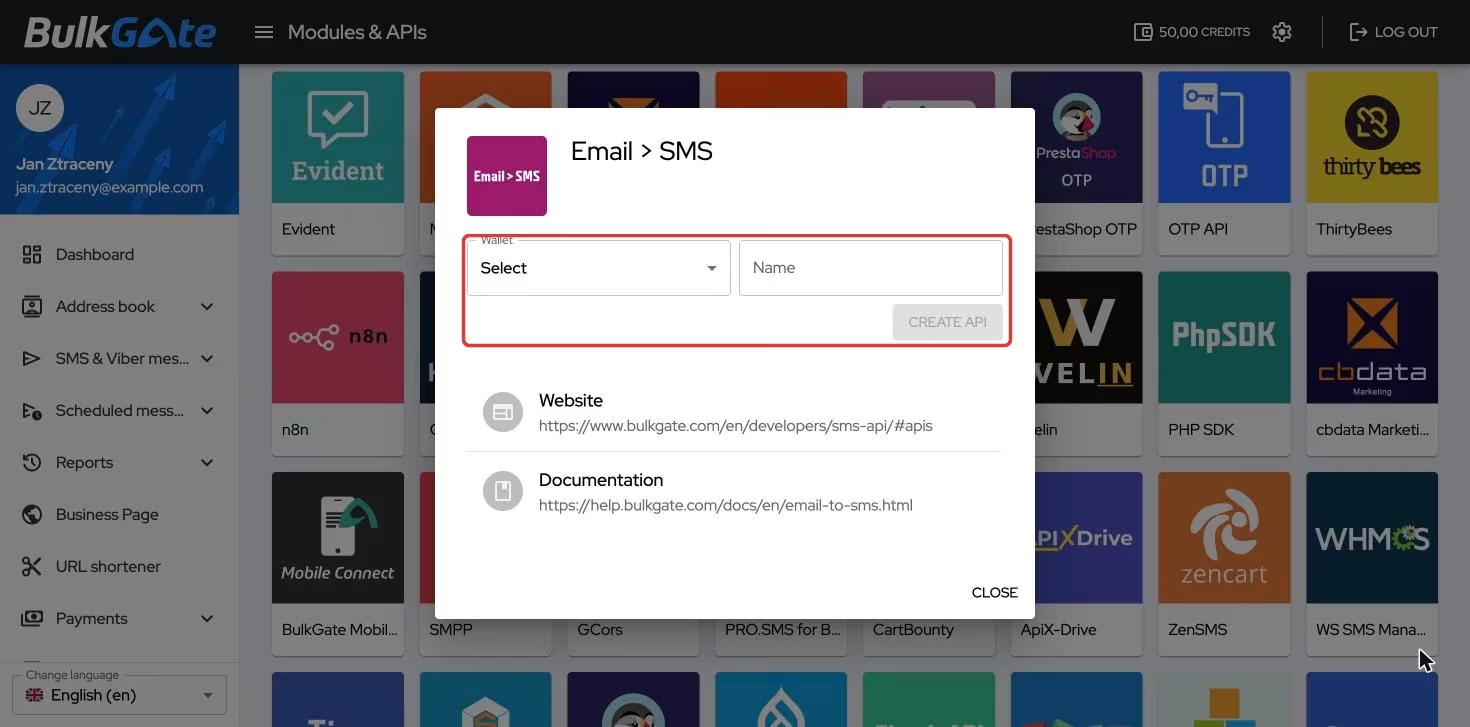
Without a wallet selected the Create API button stays disabled. Once created,
the portal takes you straight to the application detail.
A new application is switched off — the Enabled toggle in the Status part
on the right is off. Until you turn it on, no e-mail is converted to SMS.
Where to find the credentials
- Click
Modules & APIsin the menu - Under
My APIs and Modulesclick the card of yourEmail > SMSapplication
The Email settings part holds three rows. Clicking a value copies it to the
clipboard.
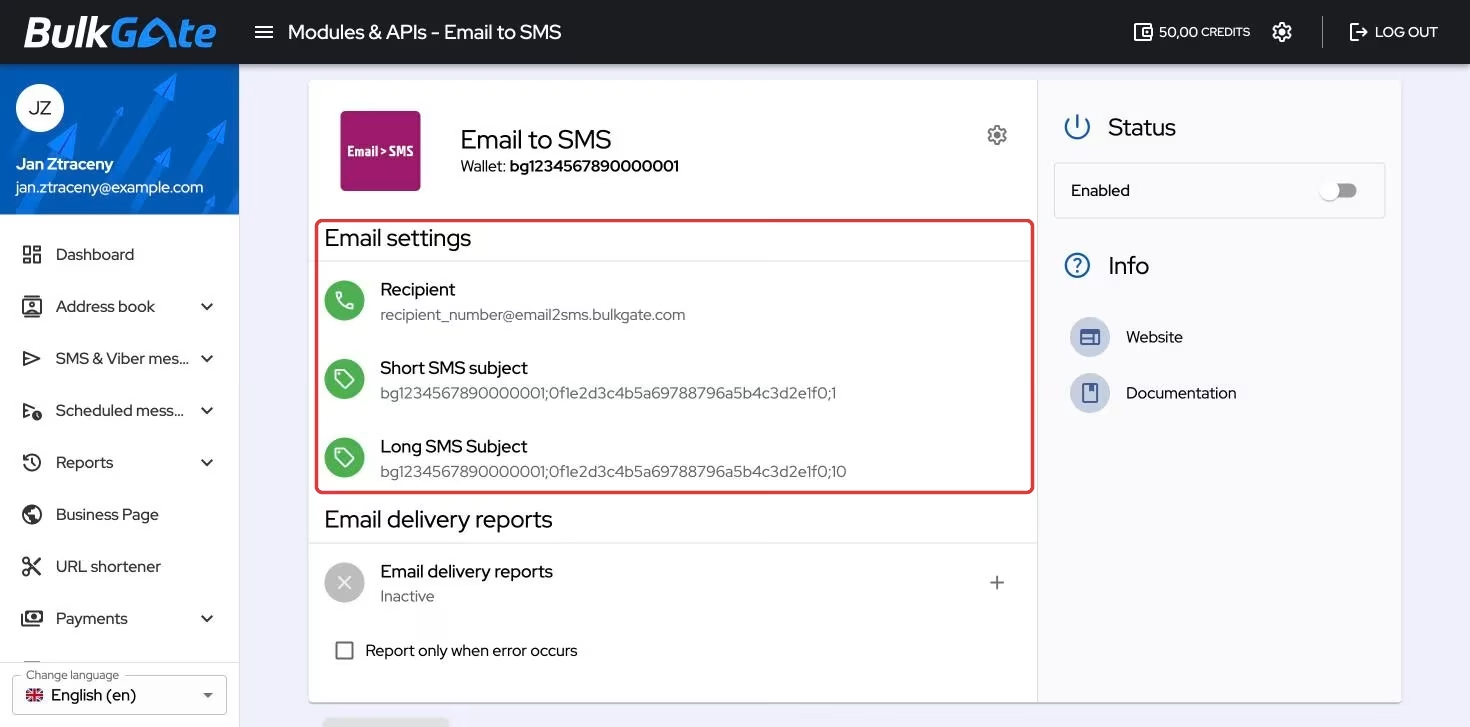
| Row | Value |
|---|---|
Recipient |
recipient_number@email2sms.bulkgate.com |
Short SMS subject |
{wallet};{key};1 |
Long SMS Subject |
{wallet};{key};10 |
Above them sits Wallet with the identifier of the wallet the messages are
billed from.
How a message is sent
In the e-mail recipient field replace recipient_number with the phone number in
international format without the plus sign and spaces — for example
420777123456. The resulting address looks like this:
Put one of the prepared values in the e-mail subject, and the body of the e-mail is the message itself.
The last number in the subject says how many SMS the message may take up at most
— 1 for a short one, 10 for a long one. A longer text is split into several
consecutive SMS and all of them are billed.
If you want a different ceiling than 1 or 10, you can change the last number in the subject yourself — leave the rest of the subject as it is.
How to receive delivery reports
The Email delivery reports part starts out Inactive. The + icon opens the
Delivery reports settings window, where you enter an address into the
Email delivery reports field and confirm with Set.
The Report only when error occurs checkbox below the list narrows the reports
down to failed messages only.
Once an address is set, the + icon turns into the three-dot Delivery reports actions offering Edit and Deactivate. Deactivating is confirmed by the
Delete settings window, which warns that you will lose your delivery reports
settings.
How to rename or delete the application
The gear icon in the top-right corner of the detail offers Rename and Delete.
Deleting is permanent — the portal warns that the application will be removed and can no longer be used. The recipient address and both subjects stop working as well.
Thank you for your feedback.