Nothing found
-
Address book
-
Campaigns
-
SMS
- Sender ID profile
- Sender type
- Unicode
- Message concatenation
- How to register a sender
-
Text sender ID registration
- Albania
- Australia
- Austria
- Belarus
- Bosnia and Herzegovina
- Bulgaria
- Croatia
- Czechia
- Finland
- Ghana
- India
- Ireland
- Israel
- Italy
- Ivory Coast
- Jordan
- Kenya
- Montenegro
- Morocco
- Mozambique
- Nigeria
- North Macedonia
- Philippines
- Qatar
- Romania
- Russia
- Serbia
- Slovenia
- Spain
- Thailand
- Turkey
- Ukraine
- United Arab Emirates
- United Kingdom
- United States of America
- Prohibited SMS content in the USA and Canada
- DND (Do Not Disturb)
-
Mobile Connect
-
Partner programs
-
Integrations
-
E-commerce modules
-
Make (ex Integromat)
- vTiger
-


Topping up credit
What credit is and how long it lasts
Credit is the virtual currency you pay for sent messages with in BulkGate — whether you send them from the portal, with a plugin, or through the API. Without enough credit a campaign will not go out.
Credit has no expiry date. It never lapses — it only goes down as you send messages.
Before you top up, work out what your campaign will cost from the price list.
How to get to the top-up page
Several routes lead there, and all of them end on the same Top up credit page:
| From | What to click |
|---|---|
| Left menu | Payments > Top up credit |
| Top bar | Hover over your credit balance and click Top up credit |
| Price list | The Top up credit button in the top right |
| Dashboard | The Top up credit button |
| Wallet detail | The Top up credit button |
How topping up works
The page walks you through three steps.
1. Enter amount
You enter the amount excluding VAT in the currency of your wallet. Next to the field the portal keeps recalculating how many credits you get for it.
Below the field are Bonus offers — preset amounts that come with extra
credit. The higher the amount, the bigger the bonus; one of the offers is marked
TOP OFFER. Clicking an offer fills the amount in for you.
2. Select payment method
Each method shows its fee and minimum payment — both differ from method to method, and what is on offer depends on the currency of your wallet. A bank transfer usually carries no fee, while a card or PayPal gets you there faster.
3. Review
The last step sums up what you pay and what you get: Credits, Bonus credits,
Fee, VAT and Total. The Pay button takes you on to the payment gateway.
When the credit lands depends on the method you picked. With a card payment it is usually immediate, with a bank transfer only once the money reaches our account.
If you want tax documents, fill in your
billing information first. The documents
issued are then in Payments > Invoices.
Messages waiting for credit
When you run out of credit mid-sending, the messages are not thrown away — they
stay in the queue. In that case a notice appears at the top of the
Top up credit page, with the two queues listed separately:
Transactional queue and Promotional queue, each with the number of waiting
messages.
Once you top up, the waiting messages are sent automatically. There is nothing else you need to do.
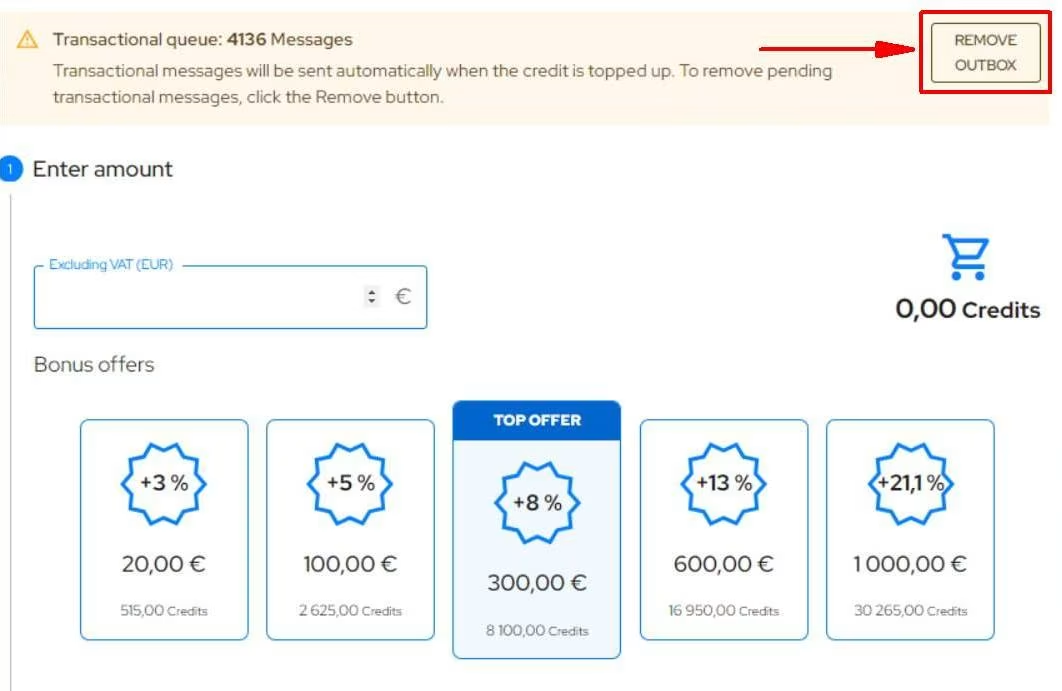
If you would rather not send them, delete them with the Remove outbox button —
separately for each queue. Before you do, keep in mind that this cannot be
undone.
The notice shows up only when you actually have messages in the queue. With
an empty queue the page starts right at the Enter amount step.
Individual campaigns and messages can be cancelled instead under
Scheduled messages, where each row in Campaigns and Transactions offers
Cancel.
Thank you for your feedback.