Nothing found
-
Address book
-
Campaigns
-
SMS
- Sender ID profile
- Sender type
- Unicode
- Message concatenation
- How to register a sender
-
Text sender ID registration
- Albania
- Australia
- Austria
- Belarus
- Bosnia and Herzegovina
- Bulgaria
- Croatia
- Czechia
- Finland
- Ghana
- India
- Ireland
- Israel
- Italy
- Ivory Coast
- Jordan
- Kenya
- Montenegro
- Morocco
- Mozambique
- Nigeria
- North Macedonia
- Philippines
- Qatar
- Romania
- Russia
- Serbia
- Slovenia
- Spain
- Thailand
- Turkey
- Ukraine
- United Arab Emirates
- United Kingdom
- United States of America
- Prohibited SMS content in the USA and Canada
- DND (Do Not Disturb)
-
Mobile Connect
-
Partner programs
-
Integrations
-
E-commerce modules
-
Make (ex Integromat)
- vTiger
-


RCS Business Messaging chat settings
How to enable RCS chats
To enable RCS messaging, chat features need to be activated on the end devices.
For Android devices:
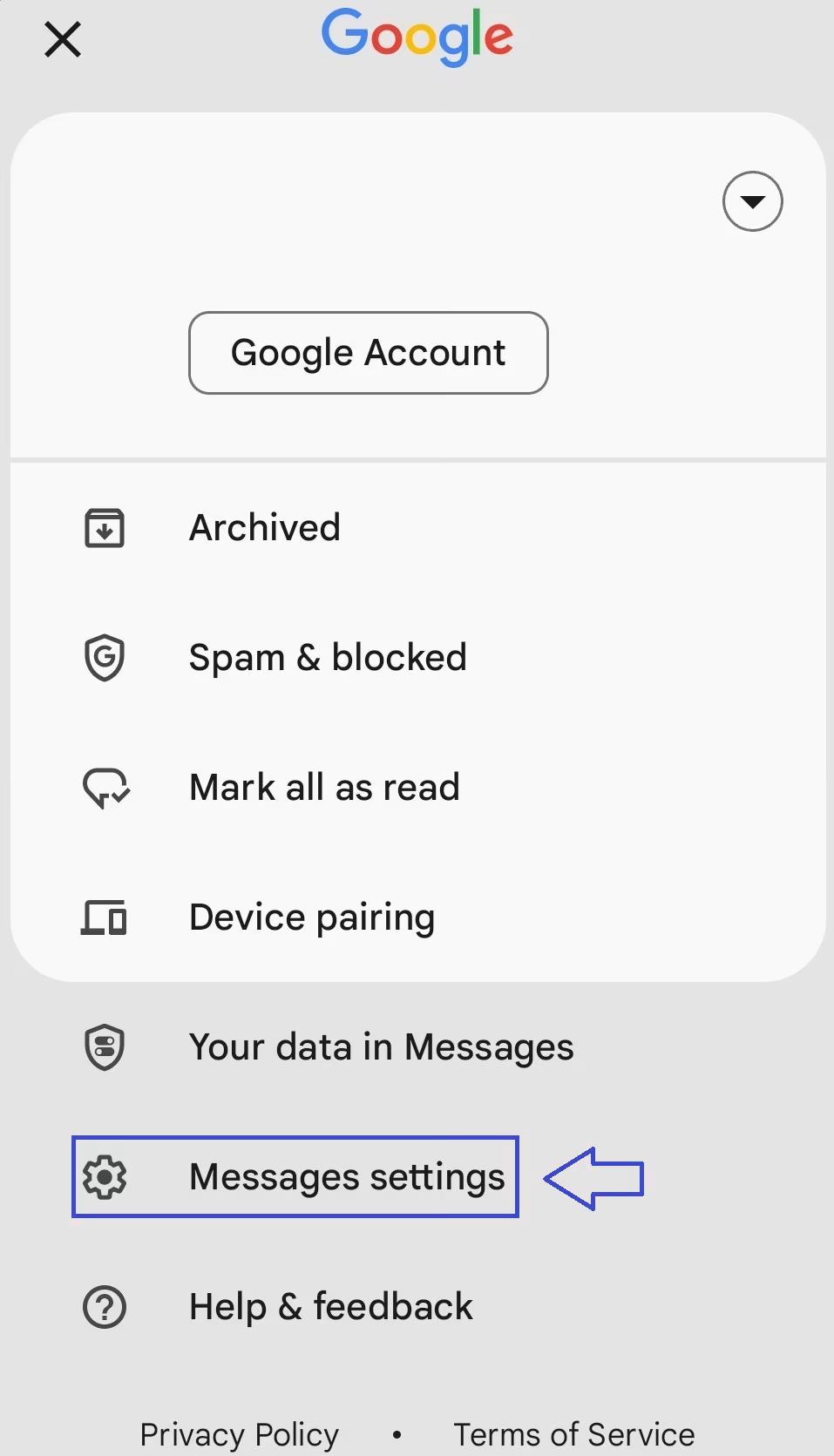
- Open the Messages app you use for SMS (typically "Google messages" for RCS compatibility).
- Tap on your Google account profile picture or the three dots (menu icon) in the upper-right corner.
- Go to Messages settings within the Messages app.
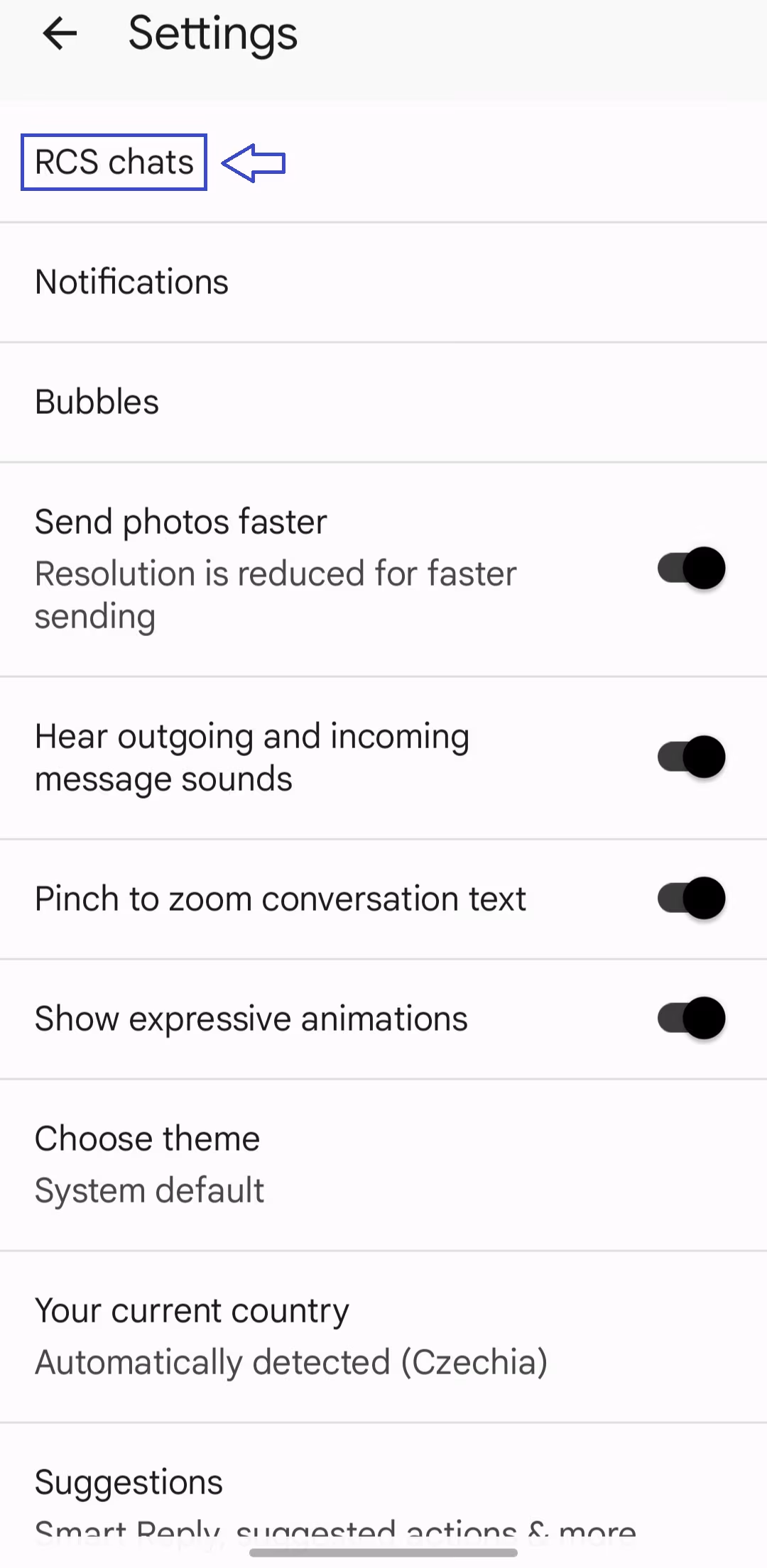
- Tap on RCS chats (if you can't find "RCS chats," tap "Chat features").
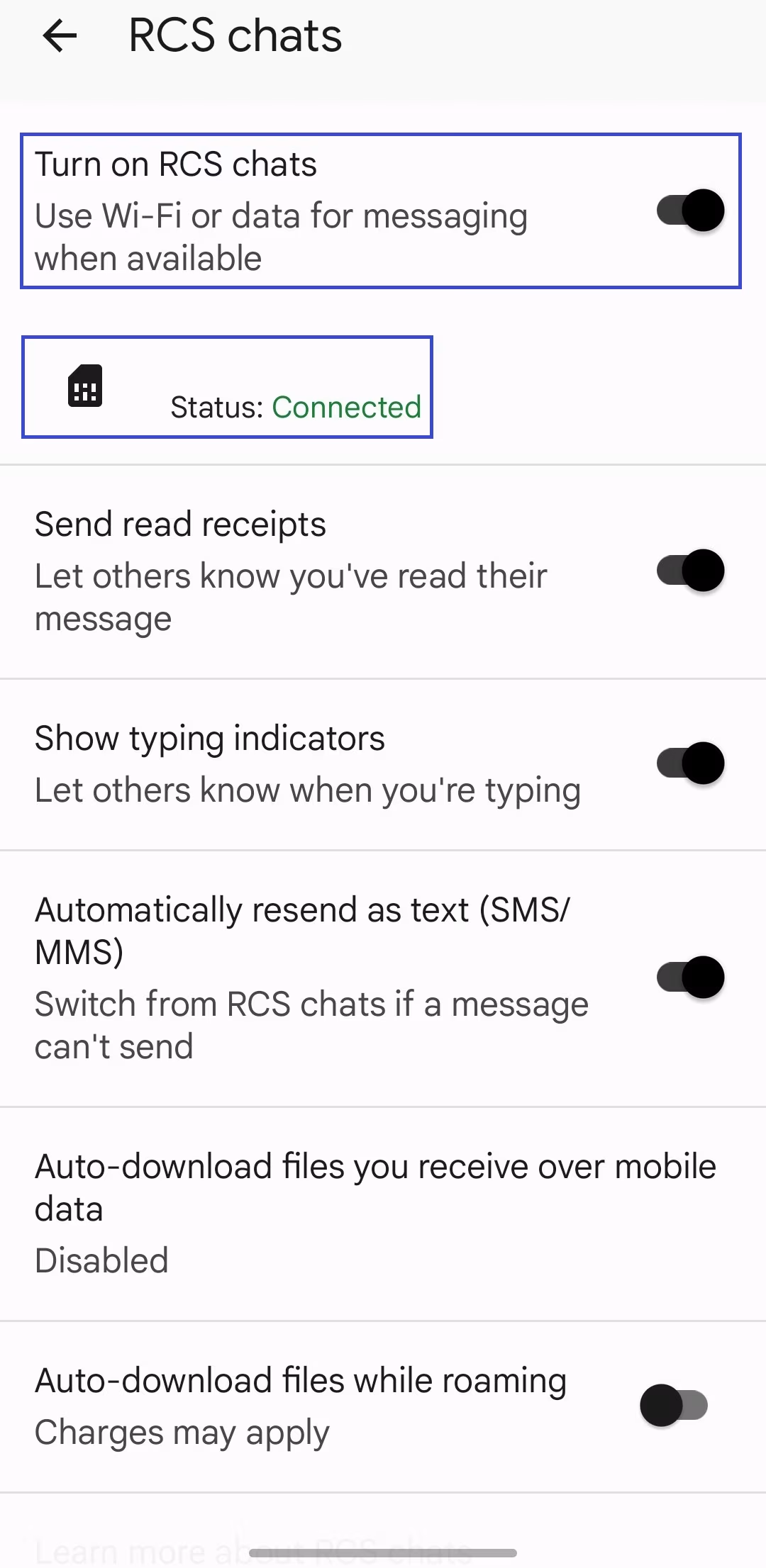
- Enable RCS chats by toggling the switch.
-
You may be asked to verify your phone number. Follow the on-screen instructions to complete verification if prompted.
-
Check that the Chat status displays "Connected" to confirm RCS is enabled.
For iOS devices:
To use RCS messaging on your iPhone, you must meet the following requirements:
- Have iOS 18 or later installed
- Your mobile operator must support RCS
- RCS service must be activated in your device settings
For the latest information about compatibility and support, always check with your operator or in Apple’s official documentation.
How to activate RCS:
- Open the Settings app on your device
- Scroll down and select Apps
- Choose the Messages app
- In the Text Messages section, select RCS Messages
- Enable the RCS Messages option
- Wait for the activation to complete
-
If RCS service is turned off on your device or not supported by your operator, you will not be able to send or receive RCS messages, regardless of your iOS version.
-
RCS functionality is disabled by default.
Additional Information and warnings
Note: The process may vary slightly depending on the Messages app you use (for Android devices). Some devices may have different steps or may not support RCS at all.
Compatibility: Not all messaging apps, devices, or carriers support RCS messaging in all regions.
Connectivity requirement: Recipients need to be connected to Wi-Fi or use cellular data; otherwise, RCS messages will not be delivered.
Deliverability: Because RCS relies on internet connectivity and carrier support, we cannot guarantee message deliverability.
Thank you for your feedback.