Nothing found
-
Address book
-
Campaigns
-
SMS
- Sender ID profile
- Sender type
- Unicode
- Message concatenation
- How to register a sender
-
Text sender ID registration
- Albania
- Australia
- Austria
- Belarus
- Bosnia and Herzegovina
- Bulgaria
- Croatia
- Czechia
- Finland
- Ghana
- India
- Ireland
- Israel
- Italy
- Ivory Coast
- Jordan
- Kenya
- Montenegro
- Morocco
- Mozambique
- Nigeria
- North Macedonia
- Philippines
- Qatar
- Romania
- Russia
- Serbia
- Slovenia
- Spain
- Thailand
- Turkey
- Ukraine
- United Arab Emirates
- United Kingdom
- United States of America
- Prohibited SMS content in the USA and Canada
- DND (Do Not Disturb)
-
Mobile Connect
-
Partner programs
-
Integrations
-
E-commerce modules
-
Make (ex Integromat)
- vTiger
-


Auto top-up: automatic credit top-up by card
Auto top-up refills your wallet on its own as soon as the balance drops below the threshold you set. Your messages do not stop for lack of credit and you do not have to top up manually. It is paid with a saved payment card, and each wallet has its own settings. Below you will find how to save a card, how to set up auto top-up and what to do if it fails.
How does auto top-up work?
When your wallet balance drops below the trigger threshold, the set top-up amount is charged to your saved card and the credit is added to the wallet. Every automatic top-up has an invoice, and in Payments > Payments you can recognise it by the Auto top-up label. Protection limits for 24 hours, 7 and 30 days cap how often the credit can be topped up.
The settings apply to the wallet, not to the card. If you have more wallets, you set up auto top-up for each one separately.
How do I save a payment card?
You can only save a card by making a real payment: you pay for a credit top-up and the card is saved with it. A card cannot be saved without a payment.
The quickest way is straight from the auto top-up page:
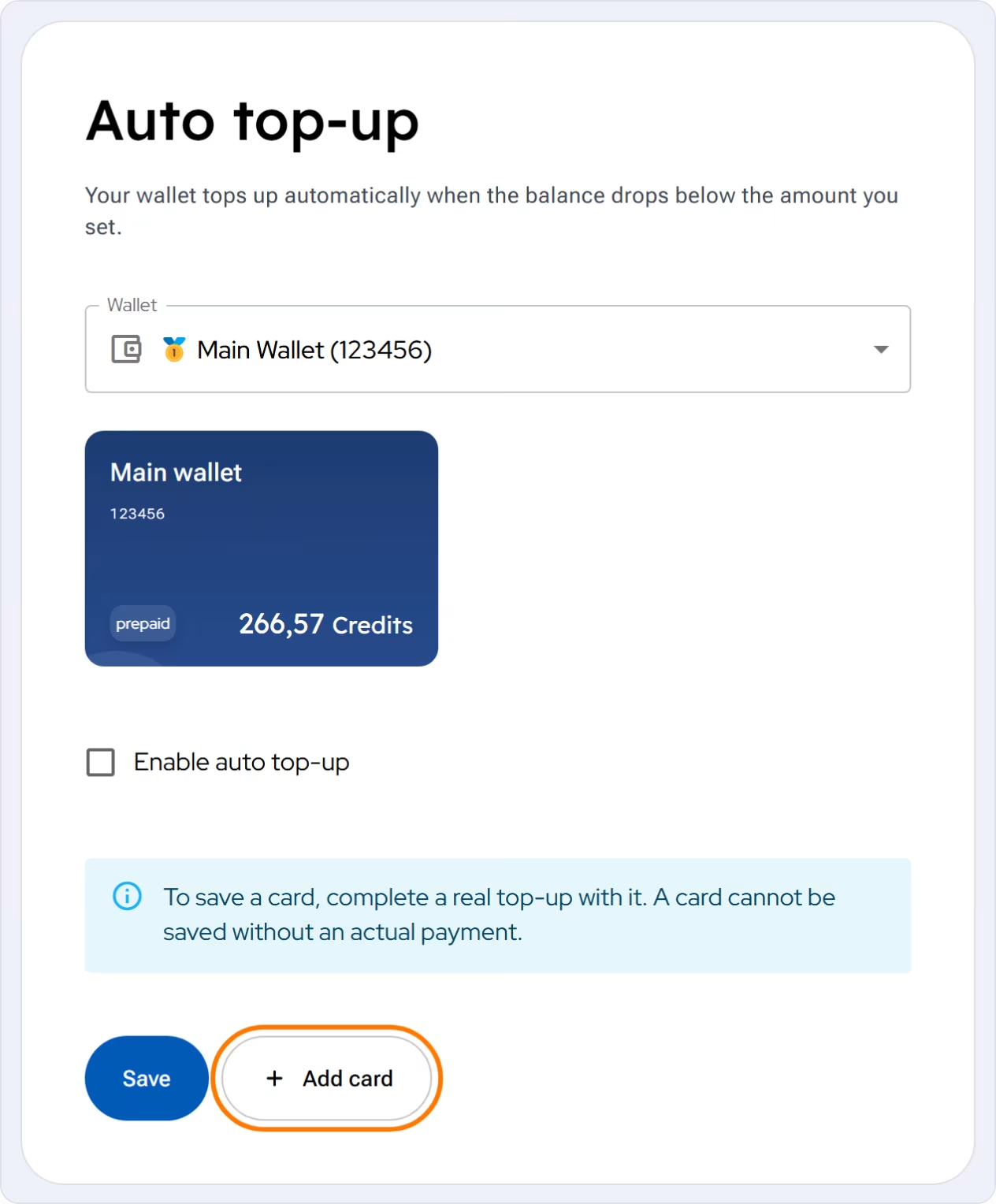
- In the portal, open
Payments>Auto top-upand select the wallet. - Click
Add card. The credit top-up opens in card-saving mode. - Enter the amount you want to top up.
- Select GP webpay as the payment method (for example
GPWebpay CZK). No other methods are offered in this mode. - In the
Reviewstep, fill in the Card holder name and the Card name you will recognise the card by later.Save this card for future paymentsis already ticked here. - Click
Payand complete the payment in the payment gateway. The credit is added and the card is saved. - Go back to
Payments>Auto top-up, turn it on and select the saved card (see How do I set up auto top-up?).
You can also save a card during a regular top-up in Payments > Top up credit. Select GP webpay as the payment method and in the Review step tick Save this card for future payments. Other methods do not offer saving a card yet.
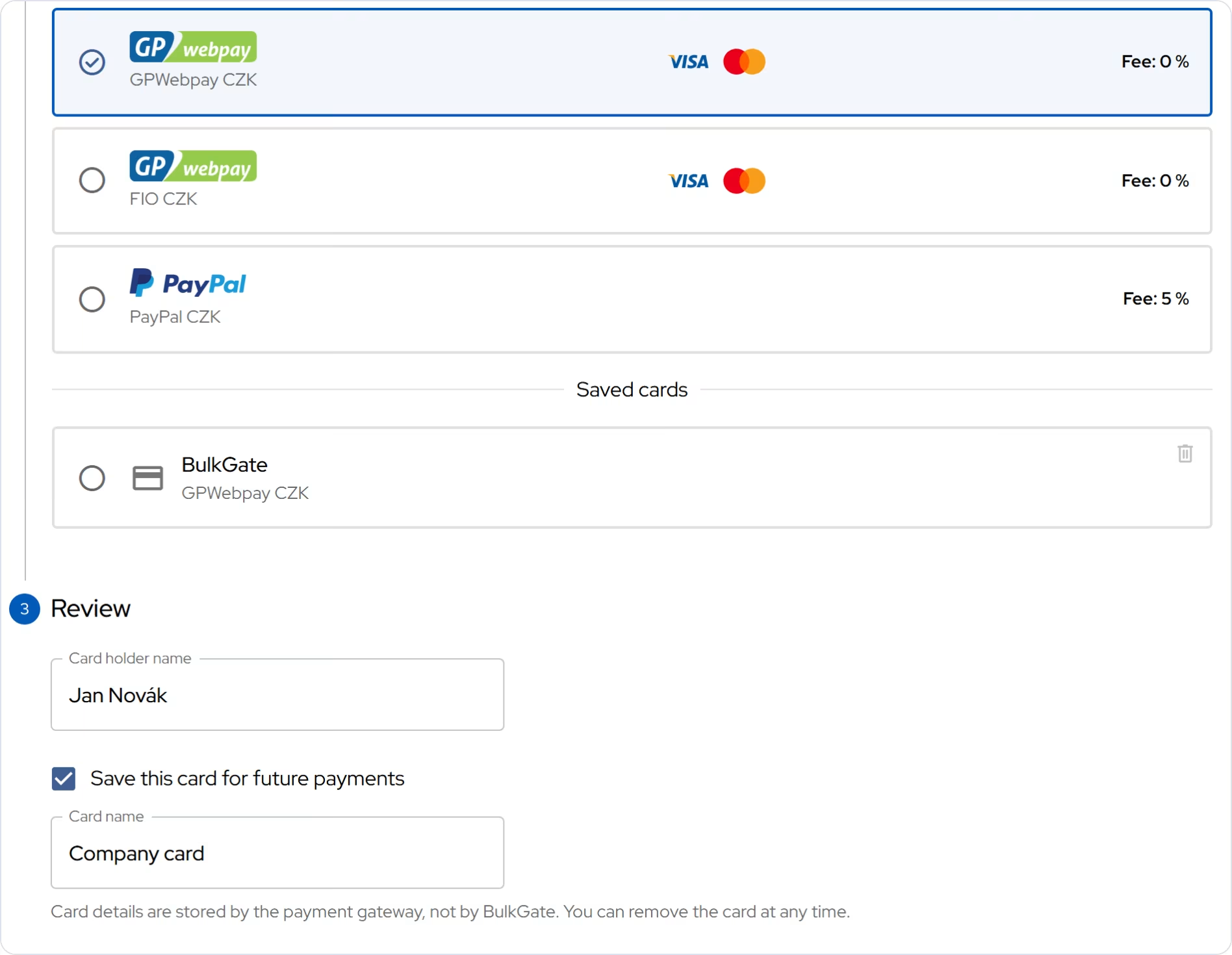
Card details are stored by the payment gateway, not by BulkGate. You can remove the card at any time.
You enter the card name only when you save the card. It cannot be changed later, so choose one you will recognise, for example "Company card".
Where do I find saved cards and how do I remove them?
You will find saved cards in Payments > Top up credit in the payment method step under Saved cards. Each one shows its name and payment gateway.
- Paying with a saved card: select the card. The
Reviewstep then shows only the summary and thePaybutton; you do not fill in the card holder name. - Removing a card: click the bin icon next to the card.
A card cannot be renamed or set as the default. If you want a different name, remove the card and save it again with your next payment.
What do I need before I turn on auto top-up?
- A saved payment card. The steps are above in How do I save a payment card?.
- The wallet owner role. Only the owner of the wallet can set up auto top-up.
How do I set up auto top-up?
- In the portal, open
Payments>Auto top-up. - Select the wallet.
- Turn on
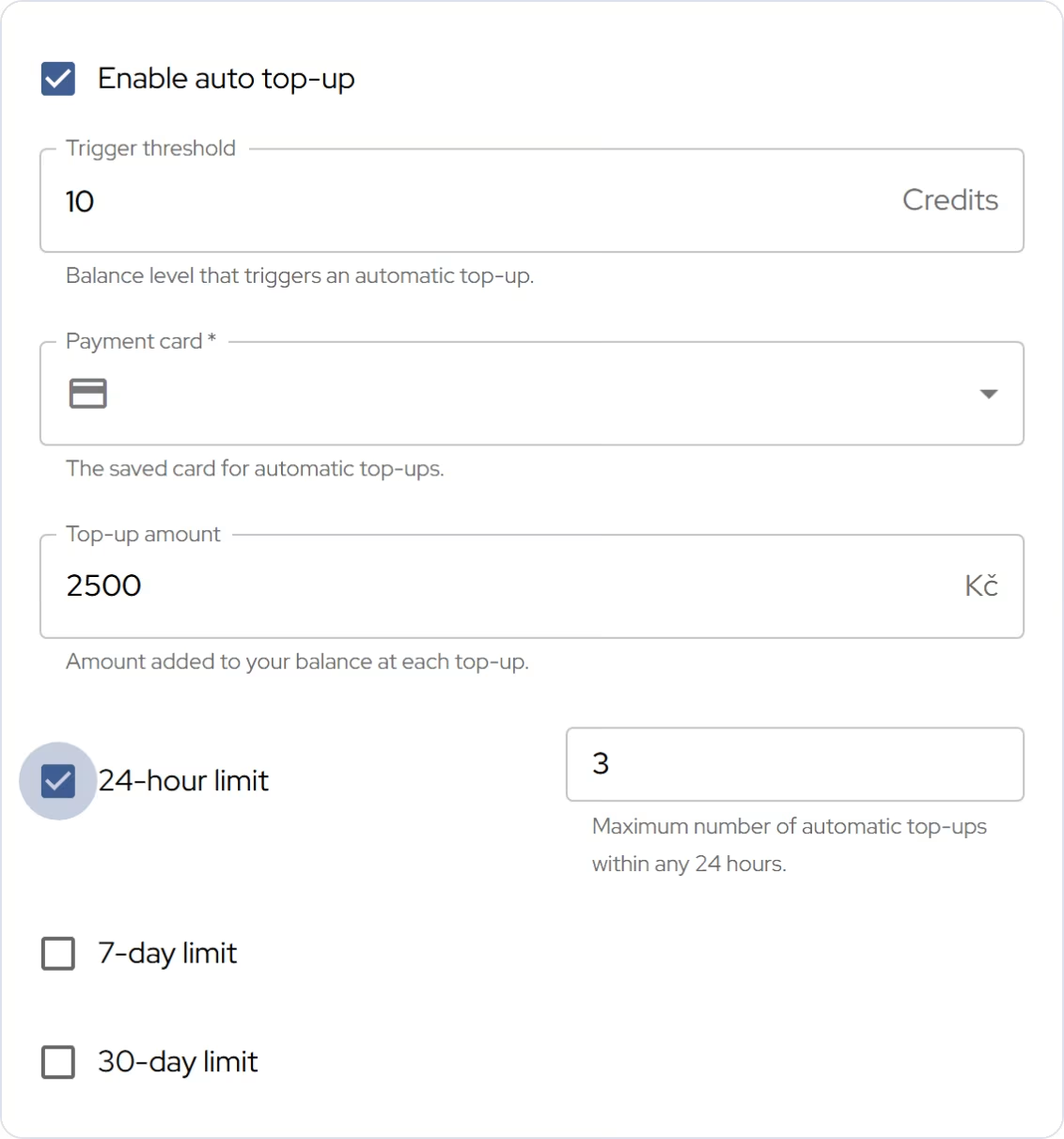
Enable auto top-up. - Fill in:
- Trigger threshold: the balance (in credits) that triggers a top-up, at least 5 and at most 100,000 credits,
- Payment card: the saved card used for payment,
- Top-up amount: how much is paid at each top-up, in your wallet's currency, at most 100,000; the portal accepts only permitted amounts,
- limits on the number of top-ups (see below).
- Click
Save.
What are the 24-hour, 7-day and 30-day limits for?
The limits protect your account and your card. They set the maximum number of automatic top-ups within a period, for example in case someone misuses your API. The 24-hour limit is ticked by default; you turn on the 7-day and 30-day limits yourself.
| limit | what it sets | recommended maximum |
|---|---|---|
| 24-hour limit | number of automatic top-ups within any 24 hours | 10 |
| 7-day limit | number of top-ups within any 7 days, cannot be lower than the 24-hour limit | 50 |
| 30-day limit | number of top-ups within any 30 days, cannot be lower than the 7-day limit | 200 |
At least one limit must be turned on. A limit cannot be set to 0: if you do not want it, turn it off.
Each limit shows how many top-ups have already been used. When a limit is used up, you get the Protection limit reached alert and no further automatic top-up runs. Check your settings or top up manually.
Set the limits to your usual traffic with a small reserve. Turn on API limits as well.
How do I know the credit was topped up?
After a successful automatic top-up you get an e-mail. You will find the payment in Payments > Payments with the Auto top-up label and the invoice in Payments > Invoices.
What if an auto top-up fails?
You get an e-mail Automatic top-up was not successful with the reason the top-up failed, and an SMS alert as well. The reason is usually a protection limit that has been reached or a problem with the card. Check your card and settings, or top up manually. Messages waiting for credit in the meantime are sent once you top up.
How do I turn auto top-up off?
In Payments > Auto top-up, turn off Enable auto top-up and save. Auto top-up also turns off when you remove the saved card it uses. To turn it back on, save a new card with Add card.
If you see a saved card on your wallet that you did not save, remove it and contact us.
Frequently asked questions
Can I top up automatically by bank transfer?
No, auto top-up only works with a saved payment card.
Does auto top-up apply to all wallets at once?
No. Each wallet has its own settings.
Is my card safe with BulkGate?
Card details are stored by the payment gateway, not by BulkGate. In the portal you only see the card name and the gateway. You can remove the card at any time.
How do I find out that my credit is running low?
Without auto top-up, set up a low credit alert. With auto top-up turned on, the credit tops itself up before it runs out.
Thank you for your feedback.